When Apple introduced the Virtualization framework in macOS Big Sur alongside the launch of Apple Silicon, it fundamentally transformed how enterprises approach macOS virtualization. Unlike traditional third-party hypervisors that operate as software layers atop the operating system, Apple’s native virtualization leverages hardware-accelerated capabilities built directly into the Apple Silicon architecture and deeply integrated with macOS itself.
For enterprise IT teams managing Mac fleets, understanding Apple’s native virtualization represents a strategic capability that extends far beyond basic VM creation. This technology enables critical workflows including beta testing, MDM validation, development environments, and secure application isolation—all without requiring expensive third-party licenses or introducing additional security risks from external virtualization software.
This comprehensive guide explores Apple’s Virtualization framework from an enterprise perspective, covering its technical architecture, practical implementation, real-world use cases, and deployment strategies for organizational environments.
Understanding Apple’s Virtualization Architecture
The Technical Foundation
Apple’s virtualization capability exists as a three-layer architecture that provides both low-level control and high-level abstraction:
Hardware Layer – Apple Silicon
At the foundation sits Apple Silicon’s hardware-accelerated virtualization extensions. The M-series chips include dedicated circuitry for CPU and memory virtualization, enabling virtual machines to execute with minimal performance overhead. This hardware support means VMs run at near-native speeds without the translation penalties traditionally associated with software-based hypervisors.
Hypervisor Framework
The Hypervisor framework provides low-level APIs for virtualizing CPU and memory resources. This framework operates at the kernel level and offers direct access to virtualization hardware capabilities. The Hypervisor framework is deliberately minimal—it handles VCPU creation and second-level address translation but leaves device emulation and VM management to higher-level components.
This design allows multiple virtualization solutions (including third-party products like Parallels Desktop and VMware Fusion) to coexist on the same Mac without conflicts. Each application can leverage the Hypervisor framework while implementing its own device models and management interfaces.
Virtualization Framework
The Virtualization framework sits atop the Hypervisor framework and provides high-level APIs for creating and managing complete virtual machines. Introduced in macOS Big Sur and significantly enhanced through subsequent releases, this framework includes:
- Pre-built device models for storage, networking, graphics, and input
- Boot loader support (including EFI boot for Linux)
- VirtIO device implementations following industry standards
- Integrated display handling through VZVirtualMachineView
- File sharing via VirtioFS
- Network bridging capabilities
- Rosetta 2 integration for running x86-64 Linux binaries on Apple Silicon
Supported Guest Operating Systems
Apple’s Virtualization framework supports two primary guest operating system types:
macOS Guests (Apple Silicon Only)
Virtual macOS instances can only run on Apple Silicon Macs and can only host ARM-based macOS versions. The framework downloads official IPSW restore images directly from Apple to create macOS VMs, ensuring authentic, unmodified operating system installations.
Key capabilities for macOS guests include:
- Full macOS functionality including GUI, networking, and file sharing
- Support for macOS Monterey (12.0) and later as guest operating systems
- Hardware-accelerated graphics through Metal
- Shared directories between host and guest using VirtioFS
- Clipboard integration
- Apple-specific keyboard support (including Globe key mapping)
- Display auto-resizing based on window dimensions
- Save and restore VM state (macOS Sonoma 14.0 and later)
- Apple ID and iCloud support (macOS Sequoia 15.0 and later)
Linux Guests
Linux virtual machines offer broader flexibility and can run on both Apple Silicon and Intel-based Macs. The framework supports:
- ARM64 Linux distributions on Apple Silicon
- x86_64 Linux distributions on Intel Macs
- EFI boot loader support for standard ISO installers
- VirtioGPU 2D for GUI rendering in macOS windows
- Rosetta 2 integration for running x86-64 binaries on ARM Linux VMs
- NVMe controller emulation for distributions without VirtIO drivers
- Network Block Device (NBD) for remote storage
- Standard VirtIO devices (block storage, network, serial, entropy)
Evolution Through macOS Versions
Apple has continuously enhanced the Virtualization framework with each major macOS release:
macOS Big Sur (11.0) – Initial Release
- Basic Virtualization framework introduction
- Linux VM support
- VirtIO device implementations
macOS Monterey (12.0) – macOS Guest Support
- Ability to run ARM macOS VMs on Apple Silicon
- IPSW-based macOS installation
- Basic file sharing via VirtioFS
macOS Ventura (13.0) – Linux Enhancement
- EFI boot loader support for standard Linux ISOs
- VirtioGPU 2D for Linux GUI rendering
- Rosetta 2 for Linux x86-64 binary translation
- Trackpad support in VMs
macOS Sonoma (14.0) – Enterprise Features
- VM save and restore functionality
- Network Block Device (NBD) support
- NVMe controller emulation
- Mac keyboard device for native key mapping
- Resizable display support
- Port forwarding (limited)
macOS Sequoia (15.0) – iCloud Integration
- Apple ID sign-in support within macOS VMs
- iCloud service access (excluding App Store)
- Nested virtualization support (M3 and later)
- Apple Sparse Image Format (ASIF) for efficient storage
- Custom network topologies with vmnet
- Enhanced provisioning workflows
Each release has moved the framework closer to feature parity with traditional virtualization solutions while maintaining the performance and security advantages of native integration.
VM Creation and Configuration
Creating macOS Virtual Machines
Using Graphical Applications
Several applications provide user-friendly interfaces for creating macOS VMs:
UTM (Universal Turing Machine)
UTM is a free, open-source application available via direct download or the Mac App Store. It provides a straightforward GUI for VM creation:
- Download UTM from https://mac.getutm.app
- Launch UTM and click “Create a New Virtual Machine”
- Select “Virtualize” (for native performance)
- Choose “macOS 12+” as the operating system
- Configure CPU cores (recommend at least 4 cores)
- Allocate memory (minimum 4GB, 8GB or more recommended)
- Set storage size (minimum 40GB for a functional macOS installation)
- UTM will automatically download the appropriate IPSW file from Apple
- Complete the installation following standard macOS setup procedures
VirtualBuddy
VirtualBuddy focuses specifically on macOS virtualization with minimal configuration:
- Download from GitHub (https://github.com/insidegui/VirtualBuddy)
- Launch and click “New Virtual Machine”
- Select the macOS version to install
- Configure resources (CPU, RAM, storage)
- The application handles IPSW download and installation automatically
Tart
Tart provides command-line focused VM management with OCI registry integration:
# Install Tart via Homebrew
brew install cirruslabs/cli/tart

# Create a new VM with macOS Sonoma
tart create --disk-size 80 sonoma-vm

# Clone an existing VM from registry
tart clone ghcr.io/cirruslabs/macos-sonoma-base:latest sonoma-test

# Start the VM
tart run sonoma-vmProgrammatic VM Creation
For organizations requiring automation or custom VM configurations, the Virtualization framework provides Swift APIs for programmatic control:
import Virtualization

// Configure the VM
let config = VZVirtualMachineConfiguration()

// Set compute resources
config.cpuCount = 4
config.memorySize = 8 * 1024 * 1024 * 1024 // 8GB

// Configure boot loader with macOS restore image
let restoreImage = URL(fileURLWithPath: "/path/to/macOS.ipsw")
let bootLoader = try VZMacOSBootLoader(
    restoreImageURL: restoreImage
)
config.bootLoader = bootLoader

// Configure platform (required for macOS)
let platform = VZMacPlatformConfiguration()
let auxiliaryStorage = try VZMacAuxiliaryStorage(
    creatingStorageAt: auxiliaryStorageURL,
    hardwareModel: hardwareModel,
    options: [.allowOverwrite]
)
platform.auxiliaryStorage = auxiliaryStorage
config.platform = platform

// Configure storage
let diskImageURL = URL(fileURLWithPath: "/path/to/disk.img")
let diskAttachment = try VZDiskImageStorageDeviceAttachment(
    url: diskImageURL,
    readOnly: false
)
let storage = VZVirtioBlockDeviceConfiguration(attachment: diskAttachment)
config.storageDevices = [storage]

// Configure networking
let networkDevice = VZVirtioNetworkDeviceConfiguration()
networkDevice.attachment = VZNATNetworkDeviceAttachment()
config.networkDevices = [networkDevice]

// Configure graphics and input
let graphicsDevice = VZMacGraphicsDeviceConfiguration()
graphicsDevice.displays = [
    VZMacGraphicsDisplayConfiguration(
        widthInPixels: 1920,
        heightInPixels: 1080,
        pixelsPerInch: 144
    )
]
config.graphicsDevices = [graphicsDevice]

config.keyboards = [VZUSBKeyboardConfiguration()]
config.pointingDevices = [VZUSBScreenCoordinatePointingDeviceConfiguration()]

// Validate and create VM
try config.validate()
let virtualMachine = VZVirtualMachine(configuration: config)

// Start the VM
virtualMachine.start { result in
    switch result {
    case .success:
        print("VM started successfully")
    case .failure(let error):
        print("Failed to start VM: \(error)")
    }
}
Advanced Configuration Options
Shared Directories
VirtioFS enables bidirectional file sharing between host and guest:
// For macOS guests
let sharedDirectory = VZSharedDirectory(
    url: hostDirectoryURL,
    readOnly: false
)
let share = VZSingleDirectoryShare(directory: sharedDirectory)
let sharingDevice = VZVirtioFileSystemDeviceConfiguration(tag: "shared")
sharingDevice.share = share
config.directorySharingDevices.append(sharingDevice)
In the guest macOS, the shared directory appears automatically in /Volumes/My Shared Files.
Network Block Device (NBD)
NBD allows VMs to access storage over the network, useful for centralized storage architectures:
let nbdAttachment = VZNetworkBlockDeviceStorageDeviceAttachment(
    url: URL(string: "nbd://storage-server:10809/export-name")!
)
let nbdStorage = VZVirtioBlockDeviceConfiguration(attachment: nbdAttachment)
config.storageDevices.append(nbdStorage)
Save and Restore VM State
macOS Sonoma introduced the ability to save running VM state:
virtualMachine.saveMachineStateTo(
    url: saveFileURL
) { error in
    if let error = error {
        print("Failed to save: \(error)")
    }
}

// Later, restore from saved state
virtualMachine.restoreMachineStateFrom(
    url: saveFileURL
) { error in
    if let error = error {
        print("Failed to restore: \(error)")
    }
}
Enterprise Use Cases
Beta Testing and Validation
One of the most valuable enterprise applications of native virtualization is macOS beta testing. Organizations face a fundamental challenge: validating new OS versions without disrupting production environments. Virtual machines provide an isolated, reversible testing environment.
Testing Workflow
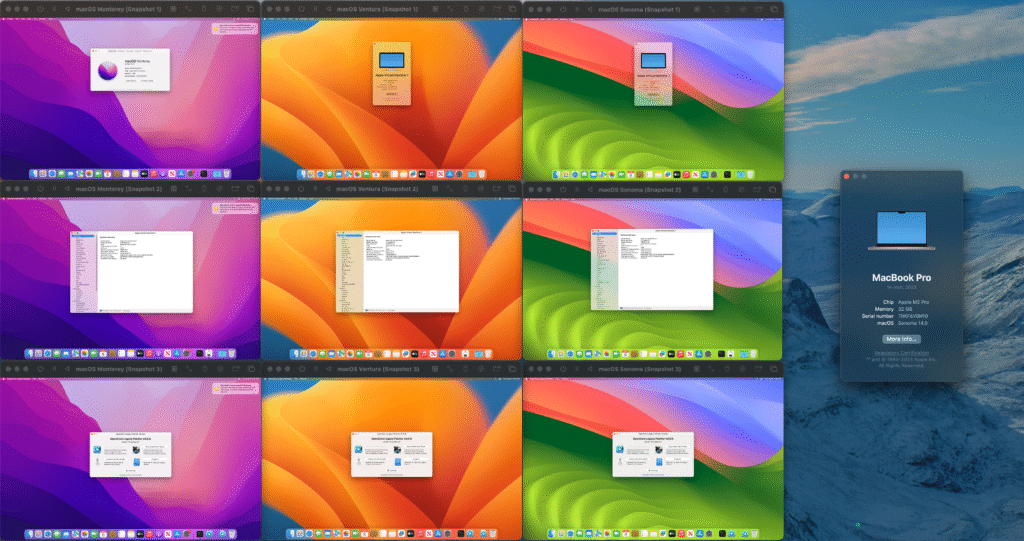
Organizations should maintain at least three VM categories:
Legacy Testing Environment
Virtual machines running older macOS versions that still have active deployments. This ensures applications continue functioning correctly for users who haven’t yet upgraded.
Current Production Environment
VMs matching the current production macOS version. These serve as baseline references for regression testing and provide quick validation environments for application updates or configuration changes.
Beta/Preview Environment
VMs running beta versions of upcoming macOS releases. These enable early identification of compatibility issues, deprecated API usage, or configuration conflicts before the OS reaches production.
Implementation Strategy
# Create base VM for each version
tart create monterey-base --disk-size 80
tart create ventura-base --disk-size 80
tart create sonoma-base --disk-size 80
tart create sequoia-beta --disk-size 80

# Clone for specific test scenarios
tart clone monterey-base monterey-mdm-test
tart clone sonoma-base sonoma-app-validation
tart clone sequoia-beta sequoia-policy-test
For each major OS update cycle, IT teams can:
- Install the beta OS in a dedicated VM
- Deploy beta profiles through MDM to enable pre-release software
- Test organizational applications for compatibility
- Validate MDM policies and configuration profiles
- Test application signing and notarization requirements
- Verify security policy enforcement
- Document any required application or workflow changes
MDM and Policy Validation
Mobile Device Management testing presents unique challenges. Configuration errors can lock users out of systems or expose security vulnerabilities. Virtual machines provide safe environments for MDM workflow validation.
Configuration Profile Testing
Before deploying configuration profiles to production devices:
- Create a clean macOS VM
- Enroll the VM in MDM using user-initiated enrollment
- Push test configuration profiles to the VM
- Verify profile installation and settings application
- Test for conflicts or unintended side effects
- Document expected behavior and edge cases
Critical Limitations
Successful MDM Test Scenarios
VMs excel at validating:
- Wi-Fi and VPN profile deployment
- Certificate distribution and trust chains
- Application installation and updates
- System extension approval workflows
- Restrictions and allowed application lists
- Passcode policy enforcement (non-FileVault)
- Software update deferral policies
- Network access controls
- Custom setting delivery
Development and Testing Environments
Software development teams benefit significantly from virtualized macOS environments, particularly when building applications for multiple macOS versions or testing complex scenarios.
Cross-Version Compatibility Testing
Applications often need to support multiple macOS versions simultaneously. Maintaining physical hardware for each version is cost-prohibitive. VMs provide efficient alternatives:
# Create development environments for each supported version
tart create dev-monterey --disk-size 100
tart create dev-ventura --disk-size 100
tart create dev-sonoma --disk-size 100

# Install Xcode in each environment
# Configure development certificates and provisioning profiles
# Test application builds across all supported versions
CI/CD Integration
Tart’s OCI registry integration makes it particularly suitable for CI/CD workflows:
# GitHub Actions example using Tart VMs
name: macOS CI
on: [push]
jobs:
  test:
    runs-on: macos-latest
    steps:
      - name: Pull VM from registry
        run: tart clone ghcr.io/org/macos-build-env:latest build-vm

      - name: Start VM
        run: tart run build-vm

      - name: Run tests in VM
        run: tart run build-vm -- /bin/bash -c "cd /project && make test"

      - name: Clean up
        run: tart delete build-vm
Training and Documentation
Organizations conducting macOS training benefit from virtual machine environments:
Training Labs
Create standardized training VMs with pre-configured scenarios:
# Create clean training environment
tart create training-base --disk-size 60

# Clone for each student
for i in {1..20}; do
    tart clone training-base student-$i
done
Each student receives an identical, isolated environment. Mistakes cause no permanent damage, and instructors can reset environments instantly between sessions.
Cost Optimization
Virtual machines reduce hardware acquisition costs:
Reduced Physical Device Requirements
Instead of maintaining multiple physical Macs for different purposes:
- One Mac mini can host 2-3 development VMs (within licensing limits)
- Mac Studio systems can support multiple concurrent test environments
- Reduces device procurement costs
- Simplifies hardware management
Implementation in Enterprise Environments
Infrastructure Planning and Design
Successful enterprise virtualization deployment requires thoughtful infrastructure planning. Organizations must consider computing resources, storage architecture, network design, and management workflows.
Compute Resource Allocation
Host System Specifications
The host Mac’s specifications directly determine VM capabilities:
Mac mini (M2 Pro or higher):
- 32GB unified memory recommended for 2-3 concurrent VMs
- 512GB storage minimum, 1TB preferred
- Suitable for development and testing workloads
- Cost-effective for distributed deployment
Mac Studio (M2 Max or Ultra):
- 64GB+ unified memory for 4-6 concurrent VMs
- 1TB+ storage for multiple VM images
- Supports intensive workloads and concurrent testing
- Ideal for centralized VM hosting
VM Resource Assignment
Allocate resources based on VM purpose:
Development VMs:
- 4-6 CPU cores
- 8-12GB RAM
- 80-100GB storage
- Supports Xcode, development tools, compilation
Testing VMs:
- 2-4 CPU cores
- 4-8GB RAM
- 40-60GB storage
- Sufficient for application validation
Storage Architecture
Apple Sparse Image Format (ASIF)
macOS Sequoia introduced ASIF for efficient storage:
# Create sparse image using diskutil
diskutil apfs create -size 100g -fs APFS -sizeType SPARSE \
    /path/to/storage/vm-disk.img MacOSDisk

# Use with Virtualization framework
# Automatically allocates space as needed
# Reduces storage footprint compared to fixed-size images
ASIF benefits:
- Only consumes space for actual data written
- Improves storage efficiency for multiple VMs
- Faster VM image transfers and copies
- Simplifies backup and archival operations
Network Design
Network Modes
The Virtualization framework supports multiple networking configurations:
NAT Networking (Default)
VMs share the host’s network connection through NAT. Characteristics:
- VMs can access external networks
- VMs are not directly accessible from external networks
- Suitable for development and testing
- Simple configuration
Bridged Networking
VMs appear as separate devices on the physical network. Characteristics:
- VMs receive IP addresses from network DHCP
- VMs directly accessible from network
- Required for some enterprise scenarios
- More complex firewall and security considerations
VM Lifecycle Management
Base Image Creation and Maintenance
Establish a standardized approach to base image management:
- Install clean macOS version using IPSW
- Apply all available system updates
- Install standard organizational software (if applicable)
- Configure basic settings and preferences
- Remove any user-specific data or configurations
- Document the base image creation date and contents
- Store in designated Base-Images directory
- Version the base image appropriately
Update Management
Maintain base images with current updates through quarterly base image refresh:
- Boot base image VM
- Install all available system updates
- Update installed software
- Test basic functionality
- Shut down cleanly
- Version as new base image
- Deprecate older base images after validation period
Automation and Scripting
Shell Script Automation
Automate common VM management tasks:
#!/bin/bash
# create-test-vm.sh - Create standardized test VM

VM_NAME=$1
BASE_IMAGE="base-images/sonoma-14.2-base"
TEST_DIR="Testing"

if [ -z "$VM_NAME" ]; then
    echo "Usage: $0 vm-name"
    exit 1
fi

# Clone base image
echo "Creating VM: $VM_NAME"
tart clone "$BASE_IMAGE" "$TEST_DIR/$VM_NAME"

# Start VM
echo "Starting $VM_NAME"
tart run "$TEST_DIR/$VM_NAME" &

# Wait for boot
sleep 30

echo "VM $VM_NAME created and started"
Security Considerations
VM Isolation
Virtual machines provide security boundaries, but organizations must understand their limitations:
Security Benefits
- VMs isolate potentially dangerous software from host systems
- Compromised VMs don’t directly affect host or other VMs
- Network segmentation limits lateral movement
- VMs can be destroyed and recreated, eliminating persistence
Security Limitations
- VM escape vulnerabilities exist (though rare in Apple’s implementation)
- Shared clipboard can transfer malicious content
- Shared directories create data bridges between host and guest
- Resource exhaustion in VMs can affect host performance
Backup and Disaster Recovery
VM Backup Strategies
Base Image Backups
Store base images in multiple locations:
- Primary storage on VM host
- Secondary copy on network storage
- Offline backup for disaster recovery
- Cloud storage for distributed organizations
Known Limitations and Workarounds
Limitation: Virtual machines cannot complete standard ADE enrollment due to Secure Enclave requirements.
Workaround: Test ADE workflows on physical devices. Use VMs for all other MDM testing scenarios. Maintain small inventory of physical test devices for ADE validation.
Limitation: Virtual machines running macOS versions prior to Sequoia cannot sign into Apple ID or access iCloud services.
Workaround: Upgrade to macOS Sequoia for VMs requiring Apple ID. Test iCloud-dependent features on physical devices.
Limitation: Even with Apple ID sign-in on Sequoia, App Store remains unavailable in VMs.
Workaround: Download applications on host Mac, transfer to VM. Use PKG installers rather than App Store delivery. Employ MDM to distribute required applications.
Conclusion
Apple’s native Virtualization framework represents a significant advancement in Mac virtualization capabilities, particularly for enterprise deployments. The combination of hardware-accelerated performance, deep macOS integration, and zero additional licensing costs creates compelling value for organizations managing Mac fleets.
Key Advantages
The framework delivers several critical benefits:
- Native Performance: Hardware acceleration provides near-native execution speeds
- Seamless Integration: Deep macOS integration eliminates compatibility friction
- Cost Efficiency: No third-party software licensing required
- Security: Leverages macOS security architecture and sandboxing
- Flexibility: Supports both macOS and Linux guest operating systems
- Developer Focus: Programmatic APIs enable custom tooling and automation
Strategic Value
For enterprise IT organizations, native virtualization enables:
- Comprehensive beta testing without additional hardware
- Safe MDM policy validation before production deployment
- Isolated development environments for multiple OS versions
- Reduced hardware acquisition and maintenance costs
- Faster test cycles through rapid VM deployment and destruction
- Standardized, reproducible environments for team consistency
Getting Started
Organizations new to Apple virtualization should:
- Identify initial use cases (beta testing, MDM validation, development)
- Acquire appropriate Mac hardware for VM hosting
- Evaluate free tools (UTM, Tart) against commercial alternatives
- Create base images for supported macOS versions
- Document VM creation and management procedures
- Train IT staff on VM operations and troubleshooting
- Start with non-critical workloads to build experience
- Gradually expand VM usage as team expertise develops
For teams managing Mac infrastructure, native virtualization is no longer optional—it’s an essential capability for modern enterprise Mac management.
Additional Resources
Official Documentation
- Apple Virtualization Framework Documentation
- WWDC 2022 – Create macOS or Linux virtual machines
- WWDC 2023 – Create seamless experiences with Virtualization