The concept of “trust no one, verify everything” has moved from cybersecurity buzzword to business imperative. For organizations managing Apple devices at scale, implementing Zero Trust isn’t just about checking compliance boxes—it’s about fundamentally rethinking how devices, users, and data interact across your enterprise.
I’ve spent considerable time working with organizations transitioning their Apple device management to Zero Trust architectures, and I can tell you: it’s less about buying new tools and more about strategically leveraging what you already have. Let’s walk through how to design a practical Zero Trust architecture for your Apple fleet.
Understanding Zero Trust in the Apple Ecosystem
Before we dive into configuration steps, let’s establish what Zero Trust actually means for Apple device management. Traditional security models assumed anything inside your network perimeter was trustworthy. Zero Trust flips this assumption—every access request must be verified, regardless of where it originates.
For Apple devices, this translates to continuous verification across three core pillars:
- Device trust – Is this device healthy, compliant, and properly configured?
- User identity – Is this person who they claim to be, and should they have access?
- Conditional access – Does this specific combination of user, device, location, and resource warrant access right now?
The beauty of Apple’s enterprise ecosystem is that it’s built with these principles in mind. Features like Declarative Device Management, Automated Device Enrollment, and tight integration with identity providers give you the building blocks for a robust Zero Trust architecture.
Establishing Device Identity and Enrollment
Your Zero Trust journey begins before devices ever reach end users. Automated Device Enrollment (ADE) is non-negotiable here—it establishes device trust from the moment a device is unboxed.
Navigate to your MDM console and locate the Automated Device Enrollment section. If you’re using Workspace ONE UEM, you’ll find this under:
For Intune users, it’s under:
Add your organization’s Apple Business Manager account by uploading the server token file. This creates the secure connection between Apple’s enrollment servers and your MDM. Set your default enrollment profile to require MDM installation with supervision enabled—this is critical for Zero Trust because it gives you deeper management control.
In your enrollment profile, configure these essential settings:
- Enable Await Configuration to prevent device usage until all security policies are applied. This ensures devices don’t operate in an insecure state, even temporarily.
- Disable the option to skip setup screens like Location Services and Apple ID—you need these configured for your security architecture.
- Make MDM profile removal require administrator authentication. In a Zero Trust model, users shouldn’t be able to unilaterally remove management.
Implementing Continuous Device Compliance
Static security configurations aren’t enough. Your devices need to report their security posture continuously, and access should adapt in real-time based on that posture.
Start by defining your compliance requirements in your MDM platform. Navigate to the compliance policy section—in Workspace ONE, this is under:
While Intune users will find it under:
Create a new policy for your Apple devices. The specific requirements depend on your organization’s risk tolerance, but certain configurations are foundational for Zero Trust:
- Require devices to be supervised through ADE.
- Set a minimum operating system version—I typically recommend staying within one major version of the current release.
- Mandate device encryption with FileVault enabled for macOS devices.
- Require passcode complexity: minimum length of 8 characters for iOS/iPadOS, 12 for macOS, with alphanumeric requirements.
- Set the device lock timeout to 5 minutes or less.
- Prohibit jailbroken or rooted devices.
Here’s where it gets interesting: configure your compliance check frequency. For high-security environments, set this to every 15 minutes. Your devices will continuously report their security state, and any drift from compliance triggers immediate remediation.
Define the actions when a device falls out of compliance. I recommend a staged approach: send notifications to users and administrators immediately, restrict access to corporate resources after 30 minutes, and lock the device after 24 hours if compliance isn’t restored. This gives users time to remediate genuine issues while protecting your environment from compromised devices.
Integrating Identity Verification
Device compliance alone isn’t enough—you need strong user identity verification. This is where your identity provider integration becomes crucial.
In your MDM console, navigate to identity provider settings. For Workspace ONE, go to:
Intune users should head to:
Configure your connection to your identity provider—whether that’s Microsoft Entra ID, Okta, or another solution. Enable multi-factor authentication (MFA) as a requirement for enrollment and access. This is non-negotiable in a Zero Trust architecture.
For macOS devices specifically, implement platform SSO. This feature, available in macOS 13 and later, creates a seamless authentication experience while maintaining security. Navigate to your configuration profile templates and create a new profile for Extensible SSO. Add your identity provider’s extension identifier and configure it to require authentication at login and when accessing corporate resources.
The real power comes from linking this identity verification to conditional access policies. In your identity provider’s admin portal, create policies that evaluate user risk signals, device compliance status, and access context before granting authentication tokens.
Configuring Conditional Access Policies
Now we tie everything together with conditional access policies. These policies make real-time access decisions based on the complete context: who’s requesting access, from which device, from where, and to what resource.
In your identity provider console, navigate to conditional access policy configuration. For Microsoft Entra ID, this is under:
For Okta, you’ll find it under:
Create a policy specifically for Apple devices accessing corporate resources. Start with the basics:
- Scope – Apply this policy to all users with Apple devices accessing corporate applications and data.
- Device compliance requirement – Configure the policy to require device compliance status from your MDM. This is where your continuous compliance monitoring pays off.
- Multi-factor authentication – Require MFA for all access attempts, with exceptions only for trusted locations if your security model allows it.
Add contextual conditions based on risk signals. Require additional authentication factors when access originates from unfamiliar locations. Increase authentication requirements when accessing high-sensitivity applications like financial systems or HR databases. Block access entirely from countries or regions where your organization doesn’t operate.
For iOS and iPadOS devices, leverage app protection policies alongside conditional access. Navigate to your MDM’s app protection settings and create policies that encrypt app data, restrict data sharing between managed and unmanaged apps, and require app-level PINs for sensitive applications.
Implementing Network Access Controls
Zero Trust extends to network connectivity. Your Apple devices shouldn’t automatically trust your corporate network just because they’re physically in the office.
Configure per-app VPN for managed applications. In Workspace ONE, navigate to:
Create a new profile, and add the Per-App VPN payload. Specify which managed apps should route traffic through your VPN solution, typically your identity-aware proxy or secure web gateway.
For macOS devices in particular, implement DNS filtering and secure DNS configurations. Create a configuration profile with the DNS Settings payload, pointing to your organization’s secure DNS resolver. This ensures all DNS queries go through your security stack, giving you visibility and control over device communication even when devices are off-network.
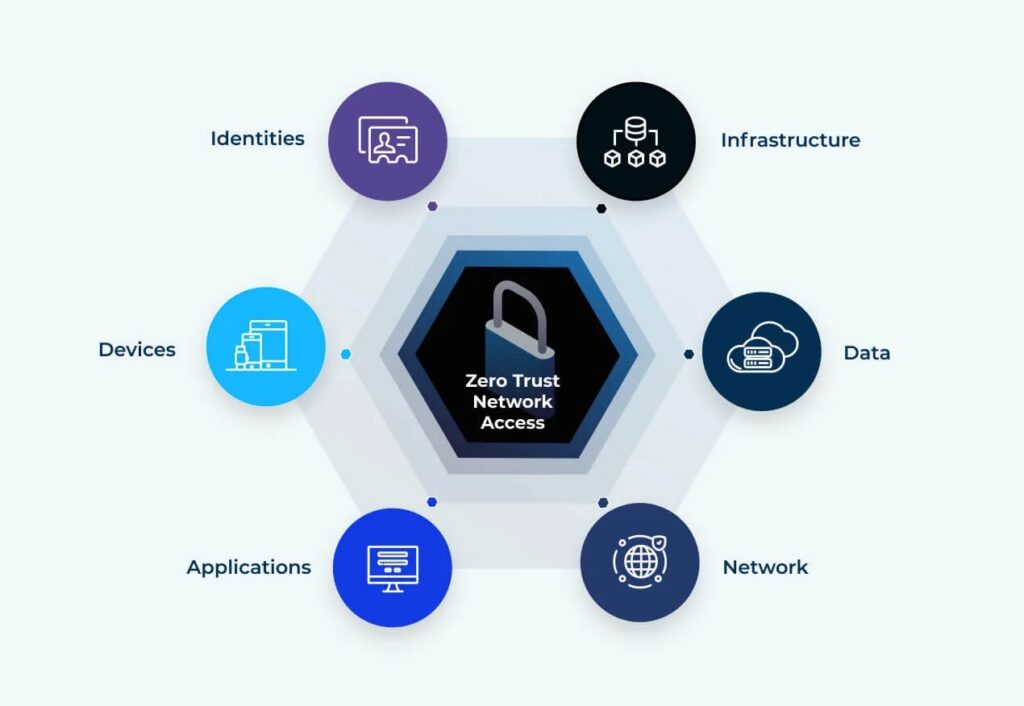
If you’re using a Zero Trust Network Access (ZTNA) solution, integrate it with your Apple device management. Most modern ZTNA solutions offer MDM integration for device trust verification. Configure your ZTNA connector to verify device compliance status before granting network access.
Monitoring and Continuous Improvement
A Zero Trust architecture isn’t “set it and forget it”—it requires continuous monitoring and refinement.
Set up your MDM dashboard to display key security metrics. Track compliance rates across your Apple device fleet, monitoring for drift patterns that might indicate emerging threats or configuration issues. Configure alerts for specific events: devices falling out of compliance, failed authentication attempts, policy violations, and unusual access patterns.
Review access logs regularly. Most MDM platforms and identity providers offer detailed logging. Look for anomalies like access attempts from unexpected locations, unusual times of day, or suspicious patterns that might indicate compromised credentials.
Plan for quarterly reviews of your Zero Trust policies. As your threat landscape evolves and Apple releases new security features, your policies should adapt. Each major iOS and macOS release brings new security capabilities—stay current and integrate them into your architecture.
The Road Ahead
Implementing Zero Trust for your Apple device fleet is a journey, not a destination. Start with the foundational elements: automated enrollment, continuous compliance monitoring, and strong identity verification. Build on that foundation with conditional access policies and network controls that adapt to real-time risk signals.
The organizations I’ve seen succeed with Zero Trust share a common approach: they leverage their existing infrastructure strategically rather than attempting wholesale replacement. Your MDM platform, identity provider, and security tools likely already support most of what you need—it’s about connecting them intelligently and configuring them properly.
Remember that Zero Trust is ultimately about reducing risk while maintaining productivity. Your policies should be strict enough to protect your organization but flexible enough to let people do their jobs. That balance is different for every organization, and finding it requires both technical implementation and ongoing refinement based on real-world usage patterns.
Start small, measure everything, and iterate based on what you learn. Your Apple devices are some of the most secure endpoints in your environment—a well-designed Zero Trust architecture helps them live up to that potential.